

The most notable change you’ll notice in Ubuntu 22.04 and Ubuntu 24.04 is that the Firefox browser is no longer installed on the system as a traditional DEB package. Instead, it is now being installed as a Snap package.
From developers’ point of view, this eases the update process and ensures that all Ubuntu users are using the latest Firefox version for their security. But on the ground, users can sometimes observe issues or performance bugs in the Snap version.
In this very quick tutorial, you’ll see how you can turn Firefox from a Snap package to a DEB package in Ubuntu 22.04 and Ubuntu 24.04 so that whatever issues you face from the Snap packaging are fixed.
The Firefox version we will install on Ubuntu is the one officially packaged by Mozilla in their official repository for Ubuntu. So this is the authentic and recommended method to follow directly coming from Mozilla and it is not by our own making.
Step 1: Add Mozilla Keys and Repository
Simply run the following commands in the terminal to add Mozilla’s official repository and the verification keys required to install software from it:
sudo install -d -m 0755 /etc/apt/keyrings

wget -q https://packages.mozilla.org/apt/repo-signing-key.gpg -O- | sudo tee /etc/apt/keyrings/packages.mozilla.org.asc > /dev/null

gpg -n -q --import --import-options import-show /etc/apt/keyrings/packages.mozilla.org.asc | awk '/pub/{getline; gsub(/^ +| +$/,""); print "\n"$0"\n"}'

echo "deb [signed-by=/etc/apt/keyrings/packages.mozilla.org.asc] https://packages.mozilla.org/apt mozilla main" | sudo tee -a /etc/apt/sources.list.d/mozilla.list > /dev/null
Step 2: Adjust Repository Priority vs Snap
In software management, there is a concept known as “distribution channel priority”, which specifies which software source to fetch the software from in case the software exists in multiple distribution channels.
In our case, we already have the Firefox package coming from Ubuntu or Debian as a transitional DEB package that installs the Snap version, and we also have the version coming from Mozilla’s repository as a native DEB package, so which one should apt install?
In order to make the system understand our desire for the Mozilla’s repository by default, we need to create a file at /etc/apt/preferences.d/mozilla and specify the priority we desire for that repository.
We can do it with the following command (It will create the file and paste the contents automatically, so just copy and paste the whole thing as it is):
echo '
Package: *
Pin: origin packages.mozilla.org
Pin-Priority: 1000
' | sudo tee /etc/apt/preferences.d/mozilla
Step 3: Install Firefox as a DEB Package on Ubuntu/Debian
Now everything is all set. We just need to install the new Firefox from Mozilla’s repository using the following commands:
sudo apt update
sudo apt install firefox
You’ll see that you have the normal DEB version now:
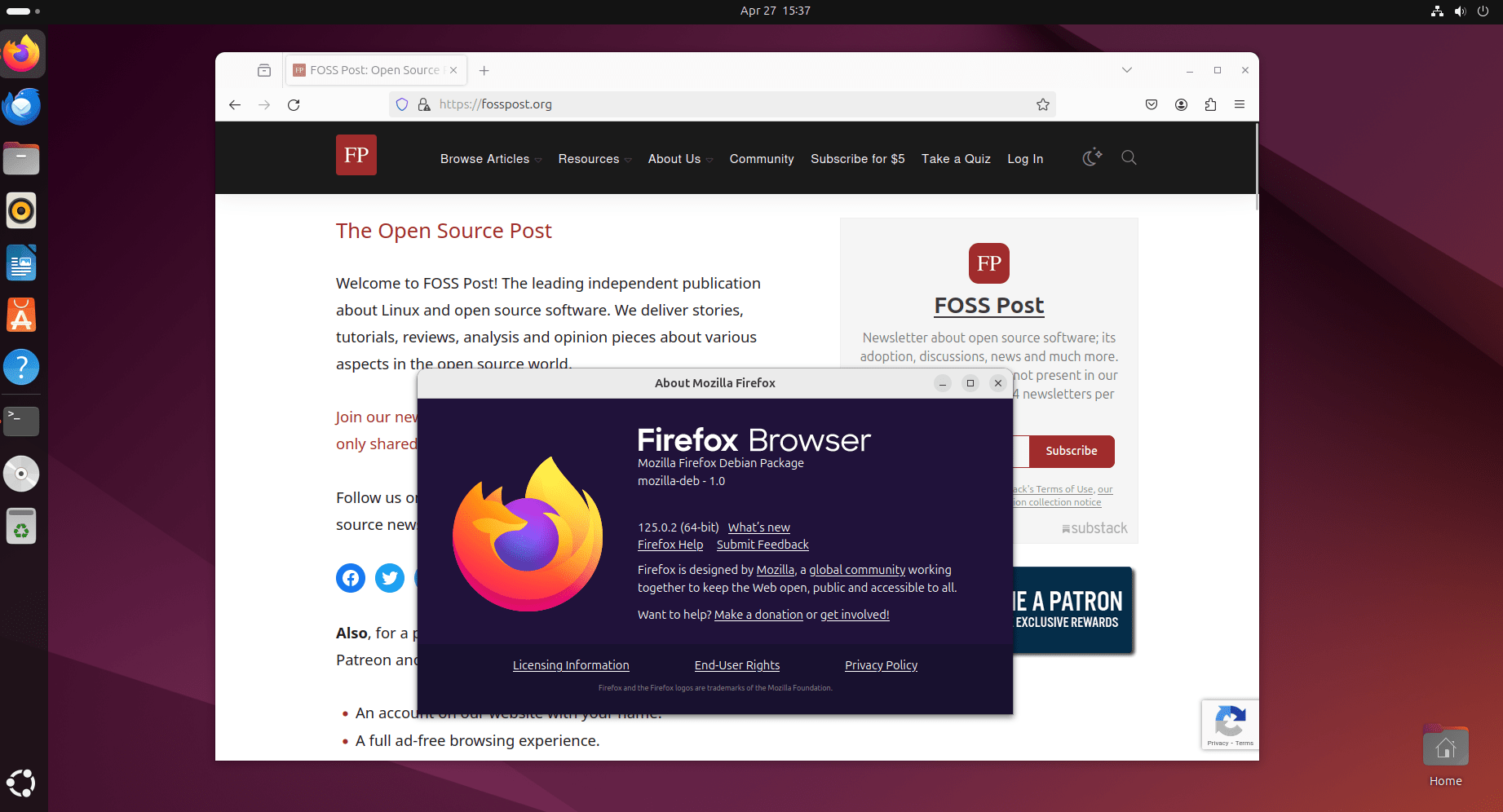
Step 4: Import Your Data from Firefox Snap
If you already used the Snap version of Firefox, then your data, extensions and settings are stuck in it, because the data of the Snap version is isolated from the DEB version of Firefox.
Run the following command to import your Firefox profile (All your data, extensions, bookmarks… etc) from the Snap version to the DEB version:
mkdir -p ~/.mozilla/firefox/ && cp -a ~/snap/firefox/common/.mozilla/firefox/* ~/.mozilla/firefox/
Now, run the following command and choose your profile so that the DEB version of Firefox will use it from now on by default:
firefox -p

Make sure Firefox is completely closed while you do these steps.
Now, you should have 2 Firefox versions installed on your system, and each one of them has your data.
Step 5: Remove the Firefox Snap in Ubuntu
The last step to do is to remove the old Snap version so that we don’t end up with two Firefox versions on our system. After all, you don’t want to mix between them each time you want to launch Firefox.
Just apply the following command in the terminal, and watch the Snap version getting snapped out of existence:
sudo snap remove firefox
That’s it! You can now enjoy your native Firefox browser packaged by Mozilla.
If you have any further comments or questions about this quick tutorial, then we will be happy to have them from the comments section below.
