

You type an address, press Enter, and Chrome answers with net::err_name_not_resolved. The browser could not turn the site name into an IP address. DNS does that job, and one link in the chain broke.
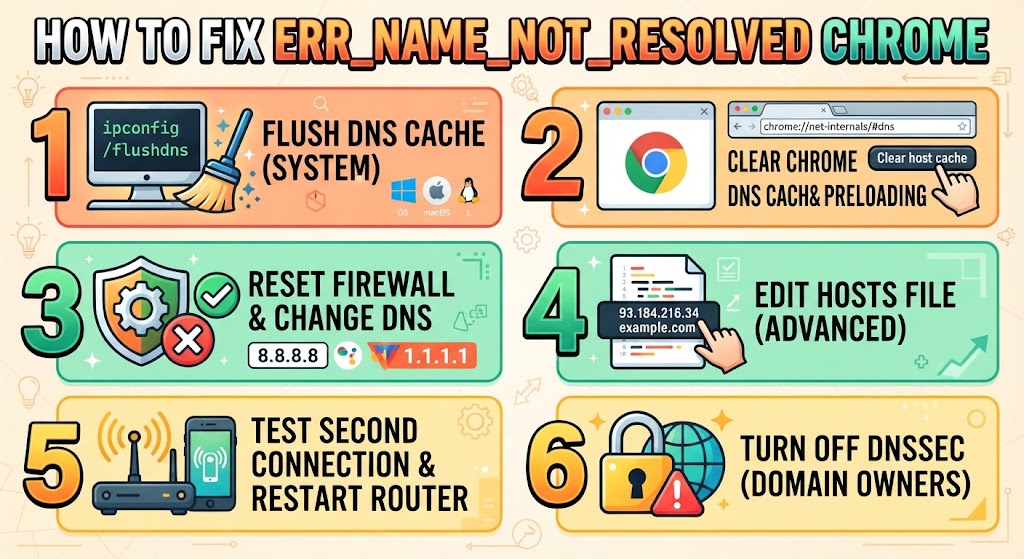
The six fixes below run from fastest to most involved. Most readers are back online after the first two.
What net::ERR_NAME_NOT_RESOLVED Means in Chrome
Chrome asks a resolver for the number behind a name. Saved answers return at once. If nothing is saved, the query climbs to the authoritative nameservers until a record turns up.
When no valid record exists anywhere, you get this code. Firefox and Edge report the same failure in different words, usually “the site can’t be reached”.
Six things cause it in practice:
- The system DNS cache holds an old number after the site moved hosts
- Chrome keeps a second cache with its own stale record
- Firewall or security software blocks lookup traffic
- Your ISP resolvers are down or slow
- A hosts file line overrules DNS
- DNSSEC signing on the domain is broken
Fix 1: Flush the DNS Cache on Your System
Your system stores past lookups for speed. After a site changes hosts, the stored number answers wrongly before any request leaves your machine. Clearing it forces a fresh query.
Flush Commands for Windows, macOS and Linux
- Windows: run ipconfig /flushdns in an administrator Command Prompt
- macOS: sudo dscacheutil -flushcache; sudo killall -HUP mDNSResponder
- Ubuntu and Debian with systemd-resolved: sudo systemd-resolve –flush-caches
- Other distributions: sudo service nscd restart
Windows replies that it flushed the DNS Resolver Cache, and Windows 11 behaves the same. The macOS line fits current releases; much older versions need a different one.
Wording on Linux shifts with the daemon in use, and distributions differ in what they ship. Run systemctl status systemd-resolved to see what is active. The basics of Bash syntax are worth a skim if these commands look unfamiliar.
Fix 2: Clear Chrome’s Own DNS Cache and Stop Preloading
A system flush never touches the second cache Chrome keeps. Paste chrome://net-internals/#dns into the address bar and press Clear host cache.
Drop cookies and site data as well, under Privacy and security, then Delete browsing data. Stale cookies block access on their own. Firefox users get comparable control through a handful of privacy extensions.
Preloading is the other culprit. Chrome looks up sites you might open next and freezes outdated answers in place. Go to Settings, Performance, Speed, find Preload pages, and switch it off.
Fix 3: Reset the Firewall, Then Change Your DNS Server
One bad firewall rule swallows lookups and leaves every site unreachable. Open Control Panel, System and Security, Windows Defender Firewall, click Restore defaults, and confirm.
Running a third-party security suite? Pause it and retest. Server-side rules follow the same logic, as this rundown of open source web application firewalls shows.
Switching to Google or Cloudflare Resolvers
If the firewall is innocent, replace your provider’s resolvers. Google runs 8.8.8.8 and 8.8.4.4. Cloudflare runs 1.1.1.1 and 1.0.0.1. Both publish IPv6 addresses too, such as 2001:4860:4860::8888 and 2606:4700:4700::1111.
On Windows 11, open Network and Sharing Center, Change Adapter Settings, right-click your adapter, choose Properties, then Internet Protocol Version 4. Tick “Use the following DNS server addresses” and type the numbers.
Mac users go to System Preferences, Network, Advanced, DNS, then the plus button. On Linux, add nameserver 8.8.8.8 and nameserver 8.8.4.4 to /etc/resolv.conf with sudo.
Fix 4: Write the Site Into Your Hosts File
Your system reads the local hosts file before it queries anything. A match there skips DNS, which makes the file a test and a patch at the same time.
On Windows the file sits at C:\Windows\System32\drivers\etc\hosts, and Notepad must run as administrator. On macOS and Linux, open /etc/hosts with sudo nano.
Add a line shaped like 93.184.216.34 example.com, using a real IP from ping or a web lookup service. If the page loads, the fault is on your side, not the server’s. Remove the line afterwards, since old entries break access once the IP changes.
Fix 5: Test a Second Connection and Restart the Router
Some faults never live on the device. Tether to your phone’s hotspot. If the site opens, the router or the provider is to blame.
Then try the page on other devices on the same network. Failure everywhere settles it. Cut the router’s power, count thirty seconds, switch it back on, and wait for the internet light to steady.
Still stuck? Sign in to the router admin panel and check its DNS settings, then call your provider. Broken resolvers on their side cause widespread err_name_not_resolved chrome failures that no local fix touches.
Fix 6: Turn Off DNSSEC on a Domain You Own
DNSSEC signs records so nobody can fake them. Set up right, you never notice it. Set up wrong, the name refuses to resolve.
Look the domain up on WHOIS. If it shows as signed and every step above failed, the signatures probably disagree with the authoritative nameservers.
Someone else’s domain leaves you nothing to do but tell the owner. On your own domain, sign in to the registrar panel, open the DNS or Nameservers area, find the DNSSEC tab, and delete the records listed. GoDaddy works the same way. The name resolves again without that layer, and the chain can be rebuilt later.
FAQs
What does ERR_NAME_NOT_RESOLVED mean?
It means Chrome could not find an IP address for the site name you entered. No valid DNS record was returned by your cache, your resolver, or the domain’s authoritative nameservers.
How do I clear the DNS cache in Chrome?
Open chrome://net-internals/#dns in the address bar and press Clear host cache. This wipes only Chrome’s cache. Flush the system cache separately with ipconfig /flushdns or the equivalent command for your OS.
Is ERR_NAME_NOT_RESOLVED caused by a virus?
Rarely. The usual causes are a stale DNS cache, a firewall rule, or a failing ISP resolver. Malware can edit the hosts file, so check that file if other fixes change nothing.
Why does only one website show this error?
A single failing site points to that domain, not your setup. The record may have expired, the host may have moved, or DNSSEC signing may be broken on the domain itself.
Does changing DNS servers fix ERR_NAME_NOT_RESOLVED?
Often, yes. Google DNS at 8.8.8.8 or Cloudflare at 1.1.1.1 bypasses a slow or offline ISP resolver. Change it in your adapter settings, then reload the page.
