

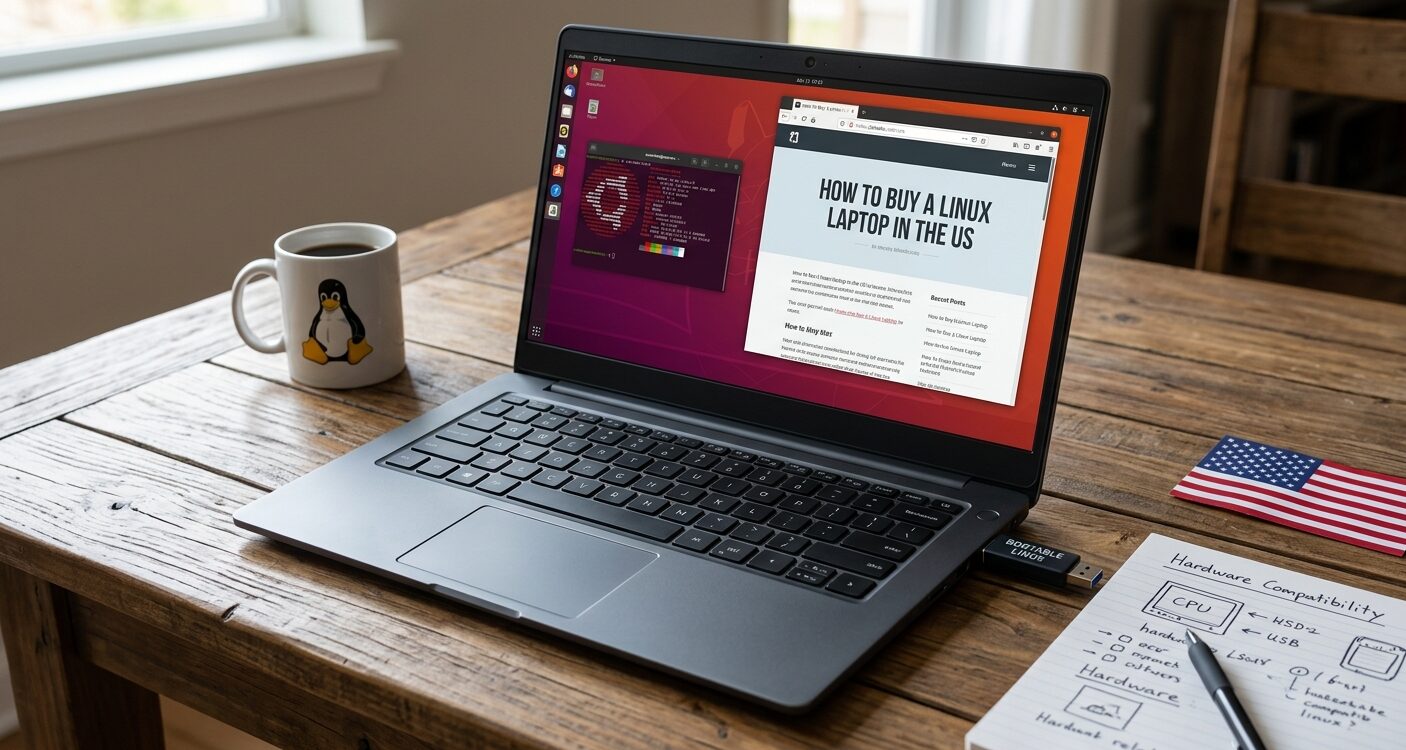
Buying a laptop for Linux in the United States should be straightforward: pick hardware that works, install a distribution you like, and get on with your work.
In practice, many buyers still end up wrestling with a preinstalled Windows license agreement, a locked-down BIOS, or a machine that was marketed as “Linux-ready” but never actually shipped with Linux.
This guide is a practical how-to for US shoppers who want a clean Linux laptop experience without the EULA fight—and without falling for myths that scare people away from dual-boot or clean installs.
The goal is simple. Understand what retailers mean when they say “Linux-ready,” know how OEM warranties really work when you change the operating system, choose a distro that fits laptop life, use a short hardware checklist before the return window closes, and decide when a Linux-first vendor makes sense versus a shop that installs Linux for you on name-brand hardware.
Why “Linux-ready” ≠ “ships with Linux”
Retail listings love the phrase “Linux-ready.” It sounds reassuring. It often means something much narrower: the CPU is supported by mainline kernels, the chipset has open or well-documented drivers, or a community wiki once listed the model as workable.
It does not mean the laptop arrives with Ubuntu, Fedora, Debian, or Mint already installed. It does not mean the seller tested suspend, resume, the webcam, fingerprint reader, or Wi-Fi under Linux. And it does not mean Windows is optional at checkout.
In the US consumer channel, most mainstream notebooks still ship with Windows. The license screen, recovery partitions, and OEM customizations are part of that default path. “Linux-ready” is closer to “you can probably install Linux yourself” than “this is a Linux laptop.”
If you want a machine that boots into a free desktop out of the box, you need either a vendor that sells Linux as the primary OS or a specialist who installs and configures Linux before it ships.
Treat marketing language as a starting point, not a guarantee. Ask what is actually installed, what was tested, and who stands behind the configuration if something fails after day one.
OEM warranty vs the “void if Linux” myth
A stubborn myth says that installing Linux voids your laptop warranty. For most major OEMs selling in the US, that is not how warranties work.
Warranty coverage is typically about defects in materials and workmanship—keyboard failures, backlight issues, motherboard faults—not about which operating system sits on the drive. Changing the OS often leaves the hardware warranty intact. What can get messy is support process, not the legal warranty itself.
Here is what actually breaks or complicates support in the real world:
- OEM recovery tools assume Windows. If you wipe the drive and later need a factory image, you may have to reinstall Windows temporarily or use the OEM’s recovery media process.
- Diagnostic scripts and phone support may insist you boot their Windows environment before escalating a hardware ticket.
- Firmware update utilities sometimes ship as Windows-only installers, though more OEMs now offer Linux-friendly or UEFI Capsule updates.
- Accidental damage or user-caused issues are not covered regardless of OS—spills, cracked panels, and bent ports are still on you.
Always check your specific OEM’s policy before you buy. Lenovo, Dell, HP, and others publish language that varies by product line and region.
When a shop installs Linux for you on a name-brand machine, ask them how they handle warranty claims: do they help you restore a stock environment for RMA, and does the OEM warranty remain with you as the purchaser?
Bottom line: installing Linux is rarely what “voids” a warranty. Poor documentation, missing recovery media, and support scripts that only know Windows are the friction points. Plan for that friction; do not invent a legal barrier that usually is not there.
Distro choice for laptops
Laptop users care about different things than server admins. Battery life, suspend/resume, Wi-Fi chipset support, trackpad gestures, HiDPI scaling, and firmware updates matter as much as package freshness. A few solid defaults cover most US buyers:
- Ubuntu LTS — Predictable release cadence, broad hardware testing, and a large knowledge base. A strong default if you want “it just works” for years.
- Fedora — Newer kernels and GNOME experience closer to upstream. Excellent if you want current hardware enablement and are comfortable with a faster upgrade rhythm.
- Debian — Rock-solid and conservative. Great for longevity if you pick hardware that already has mature drivers.
- Linux Mint — Familiar desktop metaphors for people leaving Windows, with Ubuntu-based stability and a gentler learning curve.
Other options exist, including rolling releases and more opinionated setups; a lightly customized Arch-based environment such as Omarchy can appeal to enthusiasts, but most first-time laptop buyers are better served by Ubuntu LTS, Fedora, Debian, or Mint.
Match the distro to your tolerance for change: LTS and Debian for calm, Fedora for newer kernels, Mint for a softer landing from Windows.
Whatever you choose, install on hardware you have verified—not on a mystery clearance SKU with an obscure Wi-Fi module.
Checklist: Wi-Fi, GPU, firmware updates, return window
Before the return window closes, run through this checklist. Do it on day one, not week three.
- Confirm Linux hardware compatibility. Prefer models with a public track record. When possible, check Ubuntu Certified hardware and community reports for your exact SKU—not just the marketing family name. A “14-inch XYZ” line can hide different Wi-Fi and audio chips across configurations.
- Test Wi-Fi and Bluetooth thoroughly. Connect to 2.4 GHz and 5 GHz networks, suspend the laptop, resume, and reconnect. Bluetooth keyboards and headsets are common failure points after sleep.
- Check GPU behavior. Integrated Intel or AMD graphics are usually the least painful path. Discrete NVIDIA setups can work well on modern distros, but verify hybrid graphics switching, external display output, and thermals under load. If you need CUDA or specific proprietary features, test those before you keep the machine.
- Plan firmware updates. Learn how your OEM ships BIOS/UEFI and EC updates under Linux. Capsule updates through fwupd are ideal when available. If the only tool is a Windows executable, decide in advance how you will apply critical fixes (USB recovery image, temporary Windows partition, or vendor Linux package).
- Exercise the full I/O set. Webcam, microphone, headphone jack, HDMI/USB-C DisplayPort alt mode, SD reader, fingerprint reader, and keyboard backlight. Note anything that needs an extra package or quirk.
- Watch for locked BIOS / Signature Edition-style traps. Some retail configurations restrict boot options or make installing another OS unnecessarily hard. FOSS Post has covered how Windows 10 Signature Edition can block installing Linux — read that before you buy a locked consumer SKU. If Secure Boot, boot order, or “legacy” options are missing or grayed out, that is a red flag during the return window.
- Keep receipts and the return deadline on your calendar. A laptop that “mostly works” except for flaky suspend is not a keeper. Use the retailer’s return policy as your hardware QA period.
When to buy a Linux-first vendor vs a shop that installs Linux for you?
You have two clean strategies in the US market.
Linux-first vendors sell machines designed or curated around Linux from the start. That can mean excellent out-of-box support, upstream-friendly hardware choices, and documentation aimed at free-software users.
The tradeoffs are sometimes higher prices, fewer retail return locations, and a narrower selection of chassis designs compared with the big OEMs.
Shops that install Linux for you take name-brand hardware—ThinkPads, Dells, and similar—and install and configure a distribution before shipping.
You keep familiar industrial design and often the OEM hardware warranty (confirm per brand), while someone else handles the OS install, driver sanity checks, and basic setup.
This path is especially useful if you like a specific laptop for keyboard, screen, or serviceability, but do not want to spend a weekend fighting an installer or a locked retail SKU.
Choose a Linux-first vendor when you want a company whose whole product story is Linux and you are happy inside their catalog.
Choose an install-and-configure shop when you want a particular name-brand machine, US shipping, and a Linux desktop ready on arrival without claiming the shop manufactures the hardware. In both cases, ask what was tested, which distro and version ships, and how updates and warranty hand-offs work.
If you want a concise buyer’s overview of current Linux laptop options for US shoppers, this 2026 Linux laptop guide is a useful educational starting point.
The Linux Laptop Company sources name-brand machines, installs and configures Linux (Ubuntu, Fedora, Mint, Omarchy, and other listed distros), keeps the OEM hardware warranty with the purchaser, and ships within the United States only.
Buying Linux-friendly hardware in the US does not have to mean clicking through a Windows EULA you never wanted, or discovering too late that the BIOS will not let you boot your installer.
Read past “Linux-ready,” verify compatibility, respect the return window, and pick either a true Linux-first seller or a specialist who installs Linux on hardware you already trust. Do that, and the EULA fight becomes optional—exactly how it should be.
