

An old photograph carries a kind of weight that newer pictures rarely have — a grandparent as a young adult, a house that no longer stands, a face someone barely remembers clearly anymore. These photos are often faded, sometimes cracked, and always still.
Image to video tools offer a new way to spend time with them, taking a decades-old photograph and giving it a small, believable amount of motion.
Dreamina, running on its most advanced video generation model, Seedance 2.5, makes it possible to do this carefully, without turning a treasured old image into something that feels artificial or disrespectful.
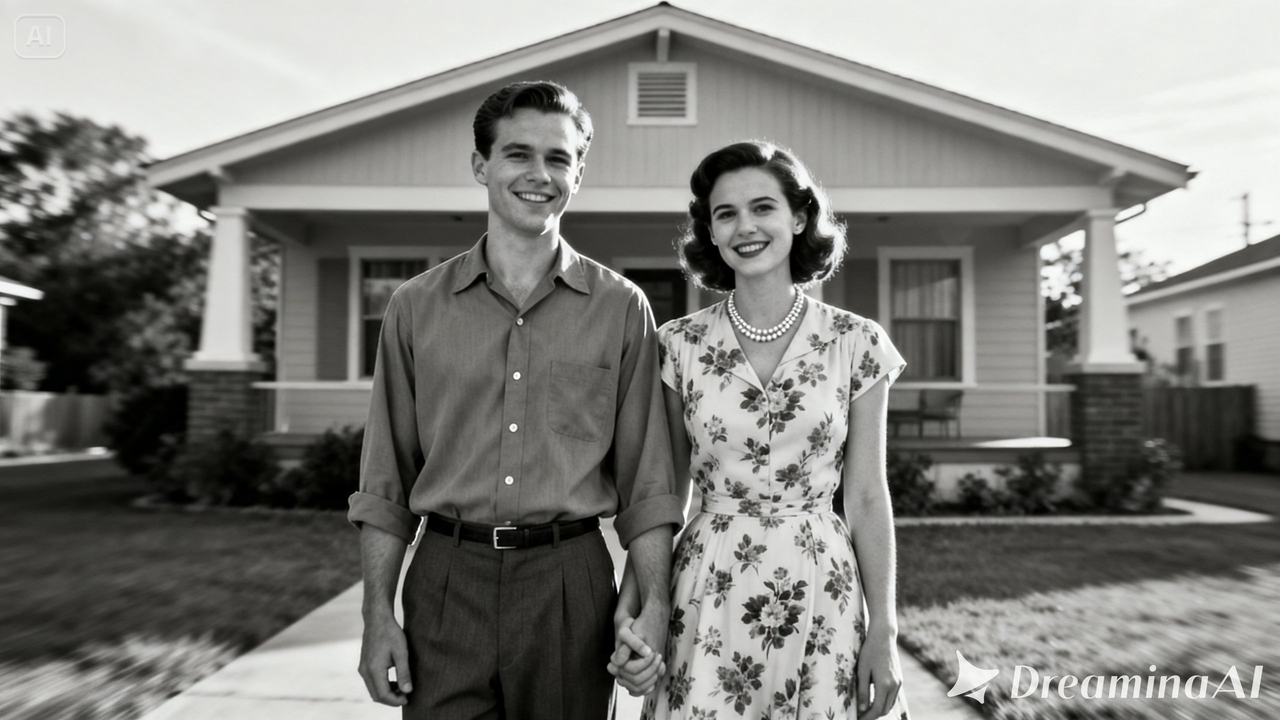
Why an old photo asks for a gentler approach?
Unlike a photo from last week, an old photograph often represents someone who’s no longer around, or a version of a place that no longer exists. That changes what “bringing it to life” should actually mean here — the goal isn’t spectacle, it’s closeness.
A small, respectful bit of movement can make a distant relative feel present again for a few seconds, which is a very different job than making an exciting piece of content.
What separates a moving version that feels earned?
A handful of things tend to matter more here than anywhere else. The motion needs to be minimal — a blink, a slight breeze through hair or clothing, nothing theatrical.
The photo’s actual condition, including grain, fading, or scratches, should stay part of the final piece rather than being smoothed away entirely.
And the pace has to feel unhurried, since rushing an old photo through fast motion tends to break the quiet mood that made the image meaningful in the first place.
Bringing an old photo to life with Dreamina
Step 1: Upload your picture and provide the motion description
Go into Dreamina, navigate to the “AI Video” option, and add the reference photo with “Add reference image.” Then describe the motion that you have in mind.
Below is an example for a 30-second video clip: “Based on this photo, create a 30-second video, in which the expressions of the couple will change slightly, there will be a slight breeze that will blow their clothes and hair, and the vintage texture of the picture remains throughout the video.”
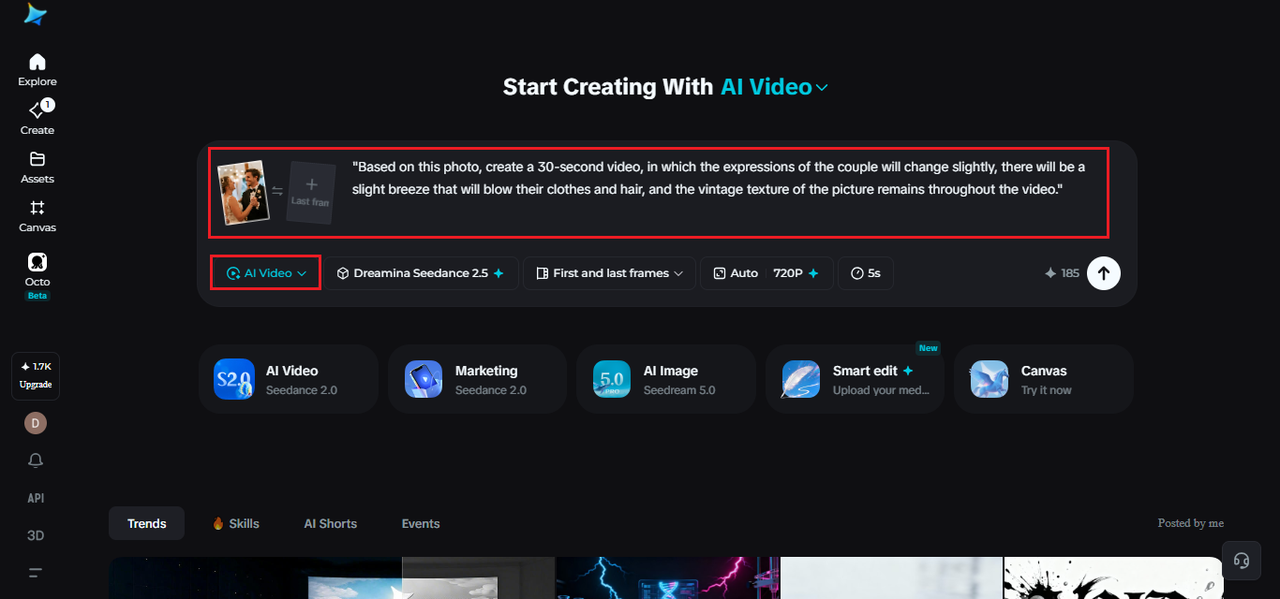
Step 2: Generate with Seedance 2.5
Pick the Seedance 2.5 model, choose your video length, then select an aspect ratio — 9:16 for sharing on a phone, 16:9 if it’s meant for a larger screen or family gathering. Tap Dreamina’s generate icon and let the photo take on motion.
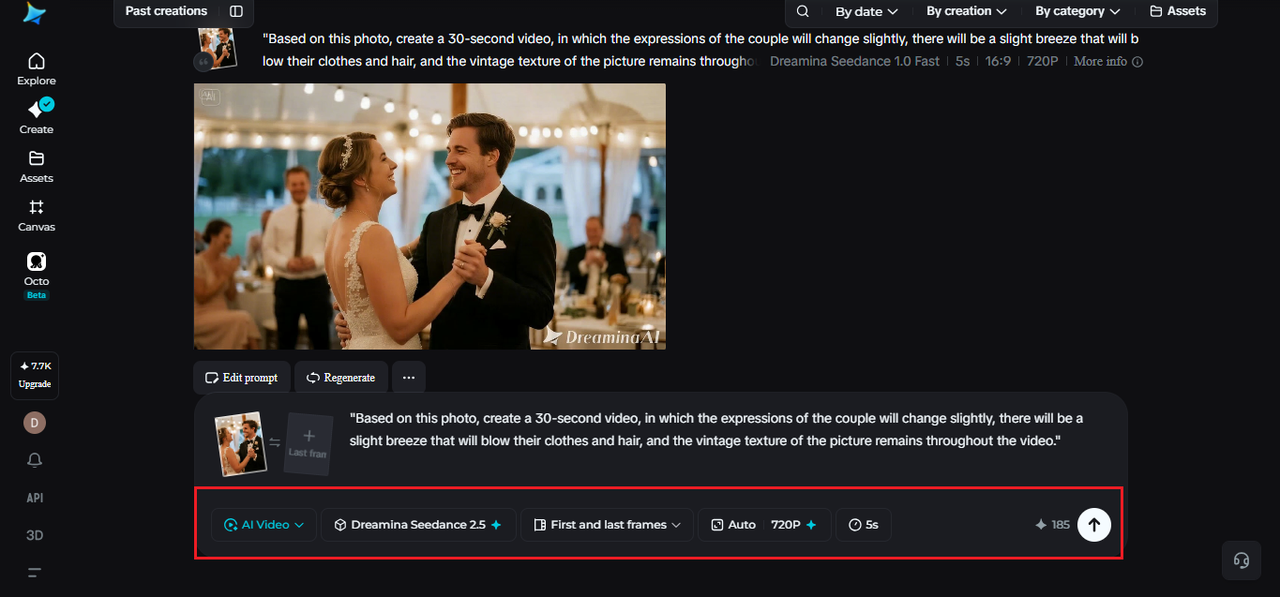
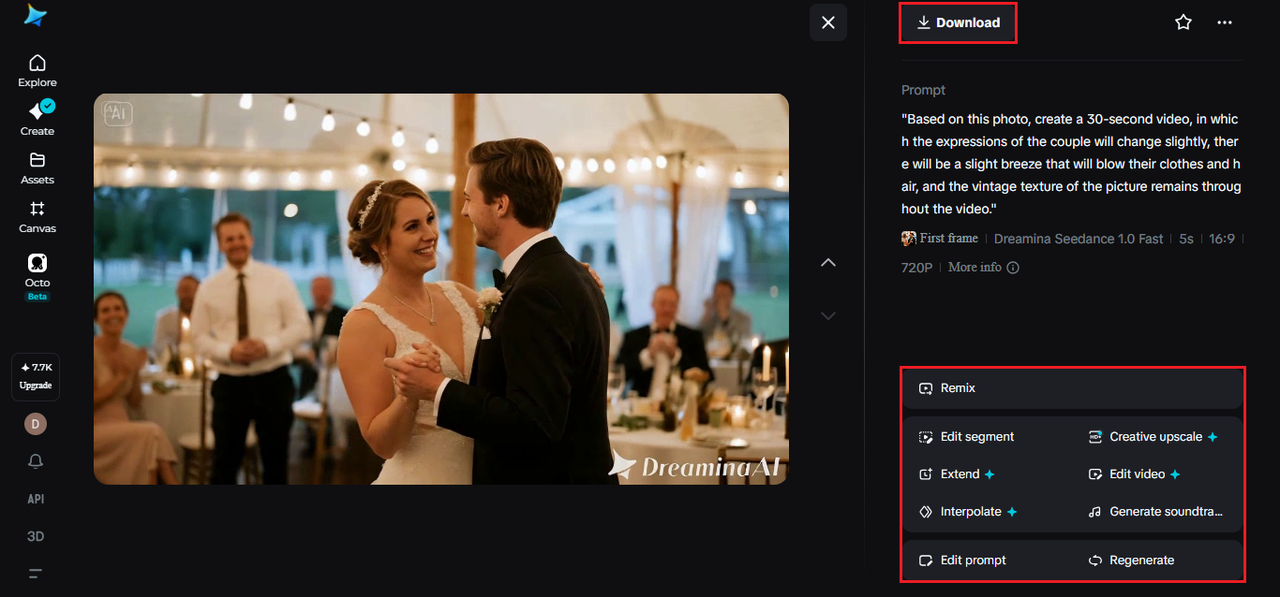
Step 3: Refine and export the finished video
Polish it using Dreamina’s editing tools — Upscale brings out detail that age may have softened, Generate Soundtrack adds a gentle period-appropriate layer if it fits — then export and share it with family who’ll appreciate seeing it.
What Seedance 2.5 brings to restoring old photos with motion?
Seedance 2.5, Dreamina’s most advanced video generation model, is well matched to the delicate, low-key motion older photographs call for.
Faces that stay who they actually were
Reference handling keeps facial features and expression consistent with the original photo, which matters enormously when the subject is someone a family still remembers clearly.
Vintage texture that doesn’t get erased
Reduced “AI look” doesn’t mean modern polish — the model can preserve grain, fading, and period lighting rather than replacing them with something that looks contemporary.
Enough time for a moment to settle
Extended duration up to 180 seconds in Ultra-long mode allows a longer, slower piece when a family wants something closer to a short tribute than a quick clip.
Small corrections without starting over
Local editing allows a scratch, crease, or damaged area to be adjusted without regenerating the whole video, which is often useful given how old photographs tend to hold physical wear.
Deciding whether a photo is ready for this
Not every old photo is a good candidate. Ones that are severely damaged, extremely low resolution, or missing large sections of detail tend to produce less convincing results than a photo that’s simply faded or slightly worn.
It can help to do a basic restoration pass first, correcting major damage, before using the photo as a video reference.
When you have photos that are clearly damaged?
The fact that your photos may be wrinkled, stained, or torn does not automatically mean that they can’t be used for a video, however, it changes the expectations that you should have from the final result.
Small imperfections located at the photo borders are usually fine as they don’t affect the main character of the image.
When the photo is damaged in the area where there is an image of a face or an object, then it’s recommended removing imperfections first.
Writing prompts that stay true to the era
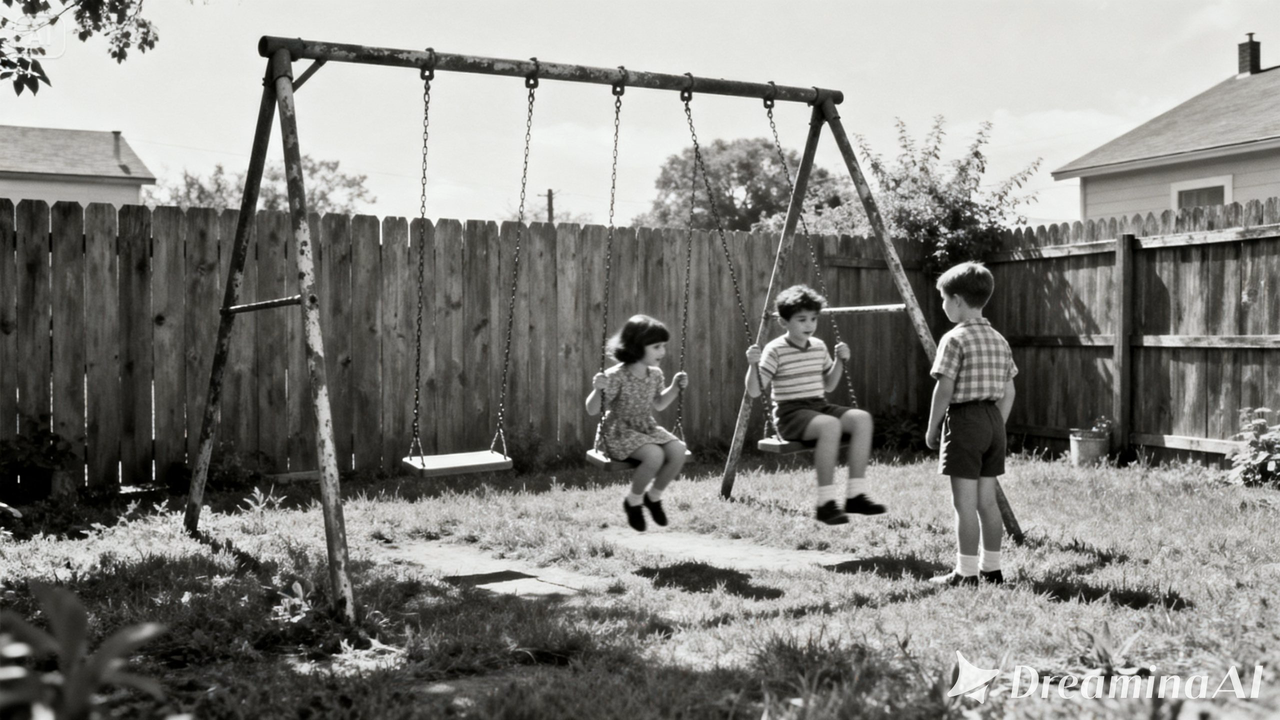
Mentioning the decade or setting — 1950s, a particular kind of clothing, an object typical of the period — helps keep the motion consistent with when the photo was actually taken, rather than defaulting to modern-feeling movement.
Choosing a pace that suits the memory
A slow, observational pace almost always suits this category better than anything quick, since the entire appeal rests on quiet presence rather than dramatic movement.
A few habits that undercut the result
Some choices tend to weaken an otherwise meaningful piece:
- Adding motion to every person in a group photo rather than keeping it selective
- Smoothing away grain and texture until the photo no longer looks vintage
- Choosing overly dramatic camera movement for a quiet, personal image
- Skipping a soundtrack when a soft period-appropriate layer would have added warmth
Where these videos tend to be used?
Family memorials, anniversary gifts, genealogy projects, and personal archives are the most common places this format shows up, since a photo that moves gently tends to mean far more to family members than one that stays completely still on a shelf.
An old photo was always holding a small piece of someone’s actual life. Seedance 2.5, running through Dreamina, is what finally lets that piece move again, carefully enough to still feel like the same person and the same moment.
