

Browser extensions make everyday tasks easier, from blocking ads to managing passwords and editing text. The catch is that many can interact with webpages and browser data, depending on their permissions.
That makes every extension a small security decision. Recent attacks show why it is worth checking what you install and who is behind it. Your browser holds plenty worth stealing Think about everything you do in a browser during a normal day.
You open email, access work systems, check social accounts, shop online, manage cloud files, and log into financial or entertainment services. Your browser may also retain cookies and active sessions that keep you signed in.
An extension’s access depends on its permissions. Chrome’s extension system can grant access to webpages, tabs, cookies, storage, and other browser capabilities. Some extensions can request access across every website you visit, while Chrome also gives users options to restrict an extension to specific sites or to run only when manually activated.
That makes permissions worth reading before installation. A compromised extension does not discriminate between your email and an account somewhere like Sportbet casino. If its permissions allow it to interact with relevant webpages, sessions, cookies, or form data, those accounts can become targets too.
The Cyberhaven incident showed how quickly this can turn serious. In December 2024, attackers compromised a developer account and pushed a malicious version of Cyberhaven’s Chrome extension. Researchers found code designed to steal browser cookies and authentication information.
The attack also appeared alongside compromises involving other extensions. The Chrome Web Store can still contain risky extensions Downloading an extension from an official store gives you an established distribution channel and some level of screening. It does not eliminate the need to vet what you install.
Google says Chrome Web Store extensions undergo automated checks and human review. Yet malicious extensions have repeatedly made it through those defenses. A 2025 academic study found that researchers were able to identify malicious extensions that had bypassed Chrome and Firefox security mechanisms, reinforcing the difficulty of detecting every harmful add-on before users install it.
There’s also the problem of the extension itself possibly changing. A developer account can be compromised, ownership can change, or a legitimate update can introduce a vulnerability. The Cyberhaven attack is a good example because users had already trusted and installed the legitimate extension before the developer account was compromised.
A July 2025 investigation found 18 extensions in the official Chrome and Edge stores that were tracking users, with more than two million combined installs. Several had positive reviews and substantial user bases.
Check what an extension can access The permissions screen is your first useful filter. Look at the requested access and compare it with what the extension actually does. A screenshot tool needing access to the page you’re capturing makes sense.
A writing tool that works inside websites may need access to page content. A tiny calculator requesting broad access across every website deserves more questions. Chrome lets users change an extension’s site access after installation.
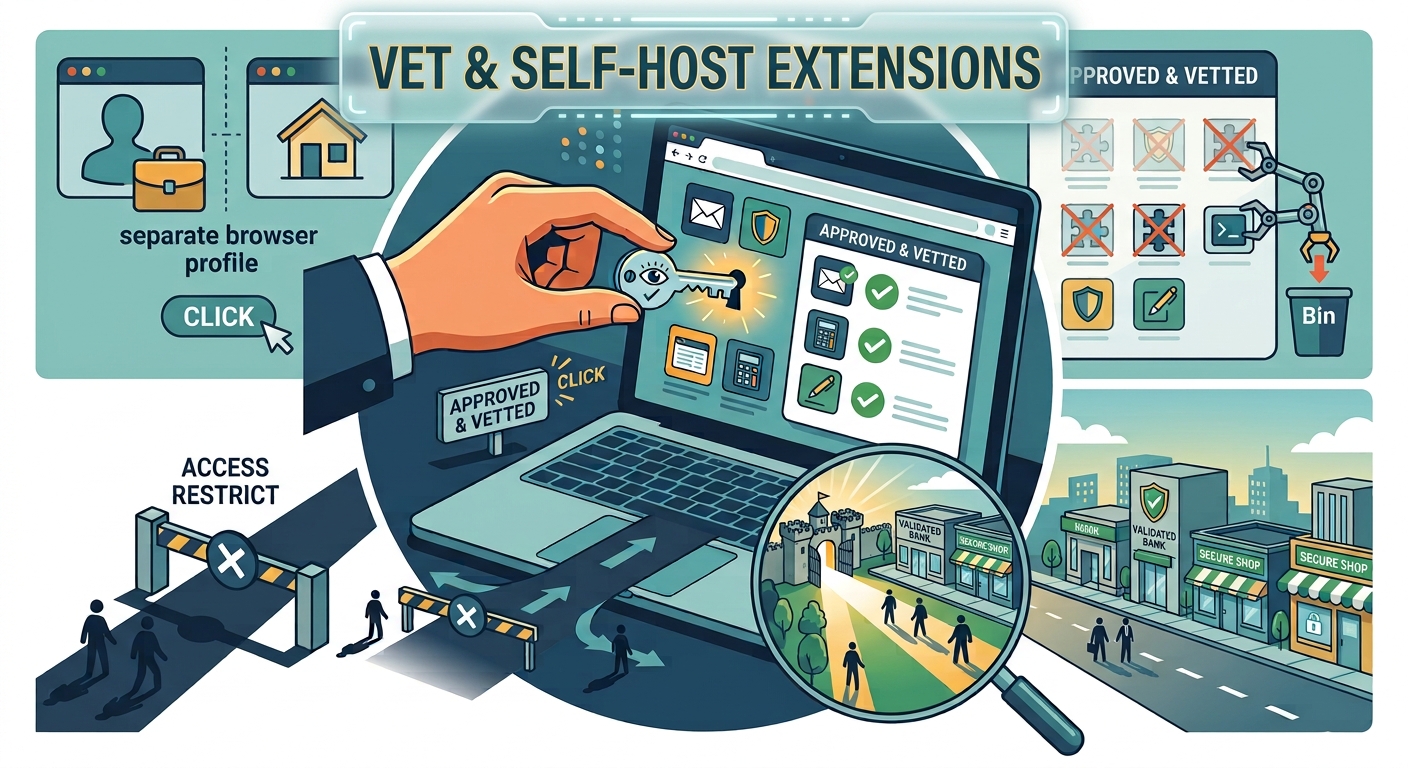
You can restrict access to specific websites or allow access only when you activate the extension. Firefox provides similar permission controls and recommends checking an add-on’s developer, description, requested permissions, reviews, and privacy policy before installing it. Pay particular attention to extensions that can operate across many sites.
The broader the access, the greater the potential exposure if that extension is compromised. Self-hosting gives you more control Self-hosting makes sense when an extension is open source and you actually have the skill to review and keep it running.
Rather than trusting the developer’s published package and its automatic updates, you inspect the source yourself, build it, and decide exactly which version goes into your browser. That also means you can check its security features firsthand before deciding whether the software earns a place in your environment.
That control isn’t free. You still have to audit dependencies, lock down the build process, stay on top of security patches, and keep the extension current — running an old build just because you trust the original author erases most of the upside.
For businesses, the payoff is bigger. IT teams can keep an approved extension list, block risky permission requests, and decide exactly which version each employee runs. Chrome Enterprise already ships policies built for managing extension installs and permissions across a fleet of devices.
Keep your extension list under control Open your extensions list and take a real look at what’s there. Odds are you’ll find a few tools you tried once, forgot about, and never uninstalled. Every extension you keep is another piece of software running in your browser, and another update path you’re trusting by default.
Pruning the ones you don’t use anymore cuts that exposure and leaves a shorter, easier list to audit. A separate browser profile helps too.
Keep the extensions you use for everyday browsing away from the profile you use for work, banking, or anything else sensitive — a clean split without needing a second computer.
