

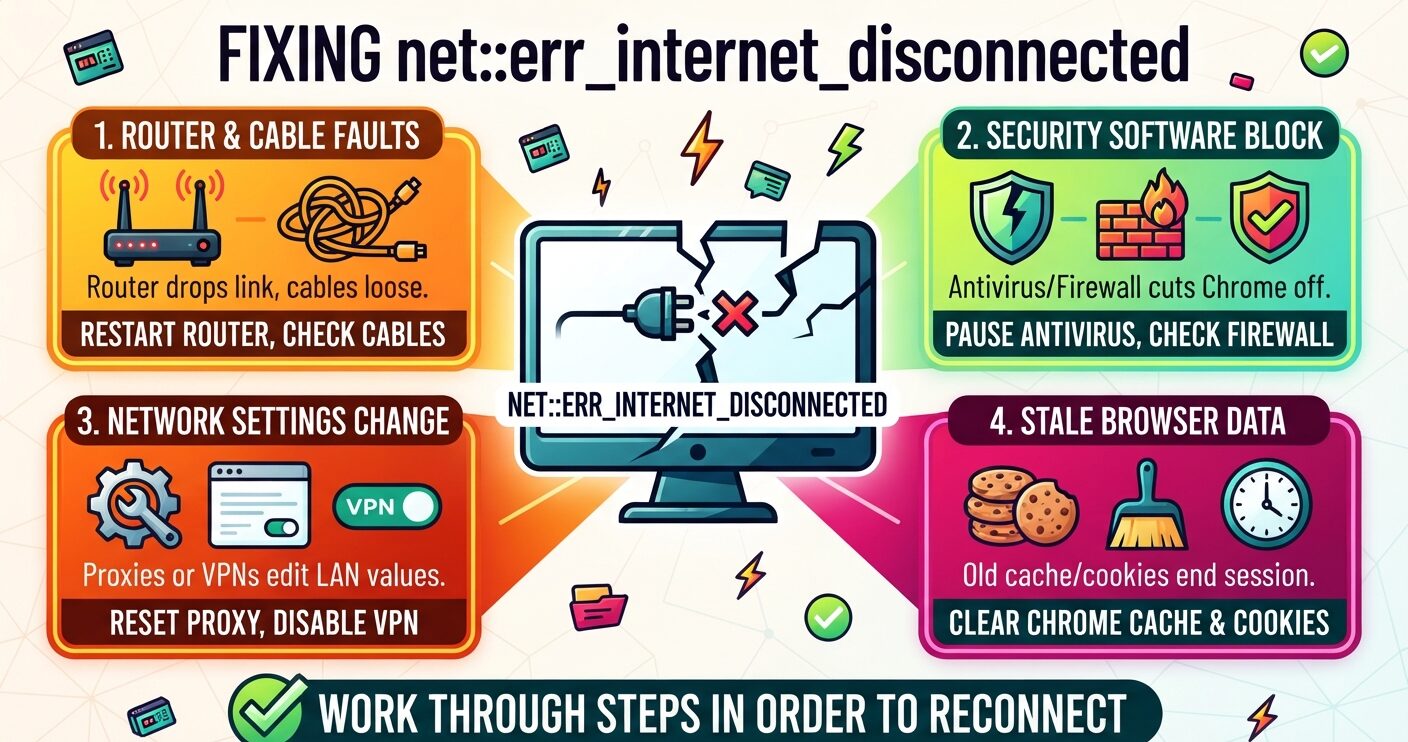
Chrome shows net::err_internet_disconnected when it thinks your device has no working network. The page never starts to load. Firefox, Edge and Safari report the same fault in their own words.
Most cases clear in a few minutes. A router restart, a forgotten Wi-Fi profile or a paused security app does the job more often than not. The eight fixes below work on Windows and Mac.
What does net::err_internet_disconnected mean?
The code means the link between your device and the internet broke. Chromium lists it as net error -106.
Timing matters. Chrome raises this error before it looks up the site’s address, so the website is not at fault. The operating system told Chrome no network exists, and Chrome stopped there.
A Wi-Fi icon that says “connected” does not rule it out. Your router may have lost its own line, or a café hotspot may be holding traffic behind a sign-in page.
What causes the err_internet_disconnected error?
Four triggers cover most cases:
- A router or modem fault that drops the web link
- Antivirus or firewall software cutting Chrome off the network
- Network or proxy settings that changed without your input
- Stale cookies and cache ending a session early
Add VPN apps to that list. A VPN that quits badly can leave its kill switch on, which blocks all traffic while the app looks idle. General PC faults and server trouble play a smaller part.
How to fix net::err_internet_disconnected in Chrome (8 methods)
Rule out the browser first. Load the same address in Firefox or Edge. If that fails too, the fault sits in your device or network, so work through the steps in order.
If only Chrome fails, jump to Method 6. Chrome can also hit protocol faults like the ERR_QUIC_PROTOCOL_ERROR code, which calls for a different fix.
Method 1: Check your internet connection
Look at the router and push every cable in tight. Check the status lights. A red or blinking light points to a problem on your provider’s side.
Then power-cycle. Unplug the modem and router, wait 30 seconds, and plug the modem in first. Test a second device on the same network. If both fail, call your provider.
On a hotel or café network, open any plain http:// address. That brings up the sign-in page an HTTPS request can hide.
Method 2: Change your LAN settings
Local Area Network (LAN) values can shift on their own, often after a VPN or proxy app edits them.
On Windows, open Control Panel, then Network and Internet, then Internet Options. In the Connections tab, click LAN settings. Tick “Automatically detect settings” and clear “Use a proxy server for your LAN”.
On older macOS builds, open System Preferences, choose Network, pick your network and click Advanced. From there you can switch networks, reorder them or stop the Mac from saving old ones. Restart and reload the page.
Method 3: Delete old WLAN profiles
Your system saves a WLAN profile for every wireless network it joins. Each one stores the passkey and other values. An outdated profile can block the link.
On Windows, go to Settings, Network & Internet, Wi-Fi, then Manage known networks. Pick the network and click Forget.
On a Mac, open System Preferences, then Network, and click Wi-Fi. Press Advanced, select the network, hit the minus button and click Apply. Restart and rejoin with the password.
Method 4: Pause your antivirus
Security apps sometimes flag normal traffic and cut the connection. Turn yours off for a short test, not for good.
Most apps have a pause switch in their own settings, and Mac tools almost always work that way. On Windows, you can also remove the app through Control Panel, Programs, then Programs and Features.
If the error disappears, the antivirus caused it. Install a newer build or change vendors, then turn protection back on. Apps that scan HTTPS traffic can also trigger certificate warnings in Chrome.
Method 5: Turn off the firewall for a test
A firewall screens data moving in and out of your PC. It stops attacks, but a bad rule can stop Chrome too.
On Windows, open Control Panel, System and Security, then Windows Defender Firewall. Click “Turn Windows Defender Firewall on or off” and choose off. On a Mac, open System Settings, Network, then Firewall, and use the toggle. Menu names differ a little by macOS release.
If pages load, add Chrome as an exception and switch the firewall back on. Your system firewall covers the whole machine, unlike a web application firewall that guards one site.
Old cookies and saved files can end a session too soon. In Chrome, click the three dots, open Settings, go to Privacy and security, and choose Delete browsing data.
Tick cookies and cached images and files, then confirm. The same step clears up cache faults like ERR_CACHE_MISS.
Method 7: Reset TCP/IP and flush DNS
On Windows, search for Command Prompt, right-click it and pick Run as administrator. Run each line and press Enter after it:
- netsh winsock reset (resets Winsock)
- netsh int ip reset (resets TCP/IP)
- ipconfig /release (drops your current IP)
- ipconfig /renew (requests a new IP)
- ipconfig /flushdns (clears the DNS cache)
Restart when done. On a Mac, open System Settings, Network, pick your connection, click Details, open TCP/IP and press Renew DHCP Lease.
A DNS flush on its own rarely clears this code, since the error fires before any name lookup. It matters more for err_name_not_resolved in Chrome. The Winsock and IP resets do the real work here.
Method 8: Update network drivers on Windows
Drivers tell Windows how to talk to your network adapter. A broken one can drop the link after sleep or a network change.
Some makers ship their own tools, such as HP Support Assistant. If yours doesn’t, open Device Manager, expand Network adapters and right-click your adapter. Choose Update driver, then Search automatically for drivers.
Run Windows Update as well. Open Settings, go to Windows Update and click Check for updates.
How to fix err_internet_disconnected in Brave, Firefox and Edge
Methods 1 to 5, 7 and 8 change system settings, so they apply in any browser. Only the proxy and cache steps differ.
Brave
Enter brave://settings/, pick System and open your computer’s proxy settings. Turn off “Automatically detect settings”. For cache, go to Privacy and security, then Clear browsing data.
Firefox
Open the three-line menu, then Settings, Privacy & Security, and Cookies and Site Data. Click Clear Data, then restart the PC.
Edge
Enter edge://settings/, pick System and performance, open proxy settings and untick automatic proxy detection. For cache, go to Privacy, search, and services, then Choose what to clear. Tick cookies and cached files, then click Clear now.
A page that loads blank with no error text is a different fault. This guide to net::err_empty_response covers that case.
FAQs
How do I fix ERR_INTERNET_DISCONNECTED?
Restart your modem and router, then check cables and Wi-Fi. If that fails, clear proxy settings, forget saved Wi-Fi profiles, pause your antivirus or firewall, and reset TCP/IP from Command Prompt.
Why does Chrome say I’m disconnected when my Wi-Fi works?
Your Wi-Fi link can work while the internet behind it doesn’t. Common causes include a VPN that quit badly, a leftover proxy setting, a hotspot sign-in page, or security software blocking Chrome.
Can antivirus cause net::err_internet_disconnected?
Yes. Antivirus and firewall tools can cut a browser off the network. Pause the tool for a quick test. If the error clears, update the software or add Chrome as an exception.
Do Reddit fixes for ERR_INTERNET_DISCONNECTED work?
Advice on Reddit varies, so test each tip against the cause. A DNS flush alone rarely helps, because Chrome raises this error before any DNS lookup. Check VPN, proxy and security software first.
What should I include when asking Reddit for help with this error?
List your operating system, browser version, whether other browsers and devices connect, any VPN or antivirus you run, and the fixes you already tried. That detail gets faster, more useful replies.
